The problem with the OData and custom webservice is that when you make more calls than the endpoints can process, the system performance will be impacted because of the resources that run the OData/Custom webservice endpoints and the rest of the system are shared. So, the number of requests sent by oData and Custom web service to the system will start to affect system reliability, the system will start to throttle requests for OData and custom service requests to make sure there is no degradation scenario for users using the Dynamics 365 Unified operations.
So which endpoints are getting throttled.
- oData EndPoints
- Custom web service
- DMF Rest API endpoints
- Recurring integration dequeue and enqueue API.
The throttling feature has been in preview since Finance 10.0.13 and will be enabled by default starting in version 10.0.19. You can manually trigger throttling in your environment by setting the priority for your OData and Custom service requests. However, starting with the release of Finance 10.0.19, throttling will be automatically enabled even if you have not set priorities.
If you want to understand how integration can be done with D365 FNO and third-party application, You can below resource. https://docs.microsoft.com/en-us/dynamics365/fin-ops-core/dev-itpro/data-entities/integration-overview
Below points will help you to understand how you can handle throttling feature for integration after 10.0.19 version.
Configuration, Retry and Monitoring.
Configure priorities for integrations.
- Assign the priority for the integration in D365FO.
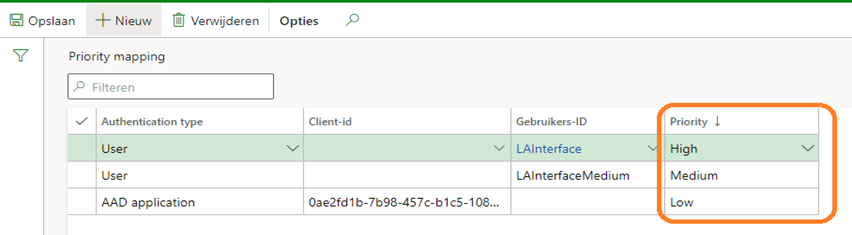
- Log into D365FO with an administrator account. Then go to “system Administration “, then click expand all and click on Throttling priority mapping under setup.
- Then click on “New” and add the integration account and select the priority accordingly. Then click Save.
Retry
When a request is throttled, the system provides a value indicating the duration before any new requests from the user can be processed. When a request is throttled and a 429 error occurs, the response header will include a Retry-After interval, which can be used to retry the request after a specific number of seconds. The following example shows this operation.
if (!response.IsSuccessStatusCode)
{
if ((int)response.StatusCode == 429)
{
int seconds = 30;
//Try to use the Retry-After header value if it is returned.
if (response.Headers.Contains("Retry-After"))
{
seconds = int.Parse(response.Headers.GetValues("Retry-After").FirstOrDefault());
}
Thread.Sleep(TimeSpan.FromSeconds(seconds));

// Retry sending the request.
}
}
Monitoring
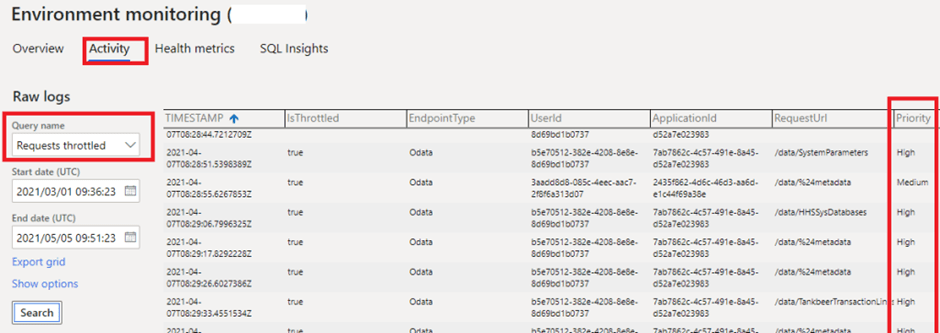
The D365FO logs all the throttled exceptions, and which can be retrieved using LCS.
1. Log into LCS: https://lcs.dynamics.com/
2. Select the correct Project
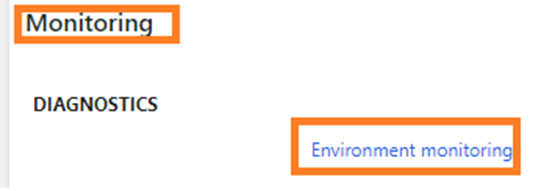
3. Then scroll down to “Monitoring” and click on “Environment Monitoring”.
4.Then click on Activity, select “Requests throttled” and “All throttled” query. Then select the range of date to see the throttled requests.
You can check following link for FAQ.
https://docs.microsoft.com/en-us/dynamics365/fin-ops-core/dev-itpro/data-entities/throttling-faq
 D365 Finance and operation
Leave a comment